Cluster creation process
Creating a cluster on an AI Hypercomputer is a sequence of choices. AI Hypercomputer is designed to give you flexibility while optimizing for your specific AI workloads, so each choice is driven by your technical requirements. Make the five choices, then create and deploy.
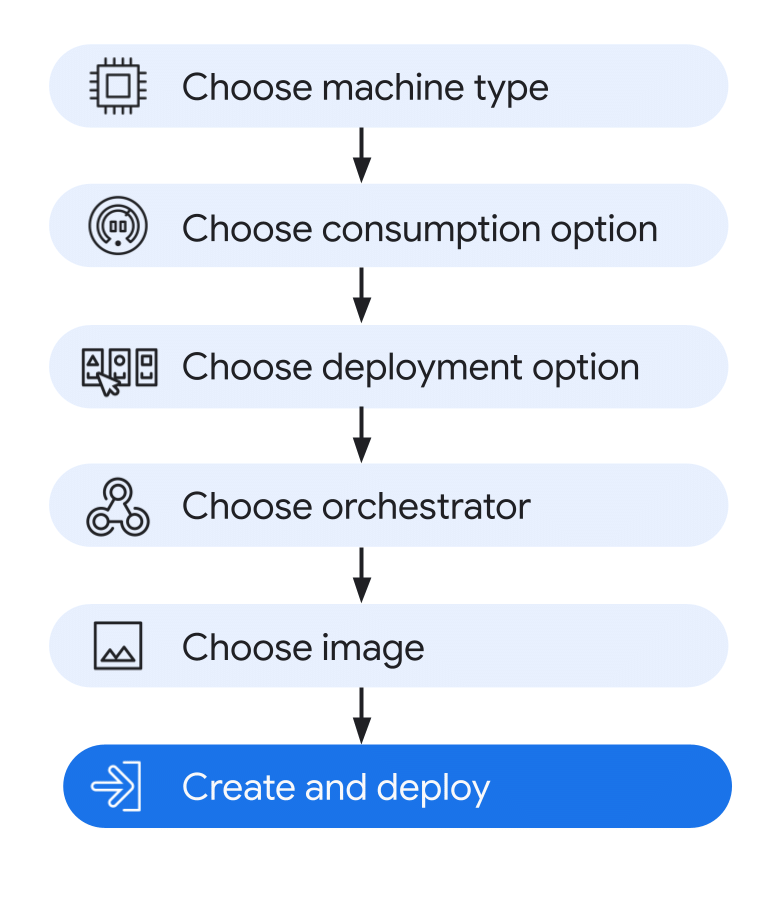
The six steps
- Choose a machine type - the compute shape (CPU/GPU/TPU) that carries the workload.
- Choose a consumption option - and request the capacity for it.
- Choose a deployment option - how the infrastructure is provisioned and managed.
- Choose an orchestrator - what schedules and runs the workload.
- Choose the cluster image - the software/OS the nodes boot with.
- Create and deploy - once the five choices are made, build the cluster.
The rest of this page covers each of these choices in more detail, with a particular focus on the deployment options.
Choosing a machine type
Choosing the machine type is the first decision for your AI project, and it directly impacts both speed and cost. To make that decision well, you first need to understand the distinct workload types that shape it.
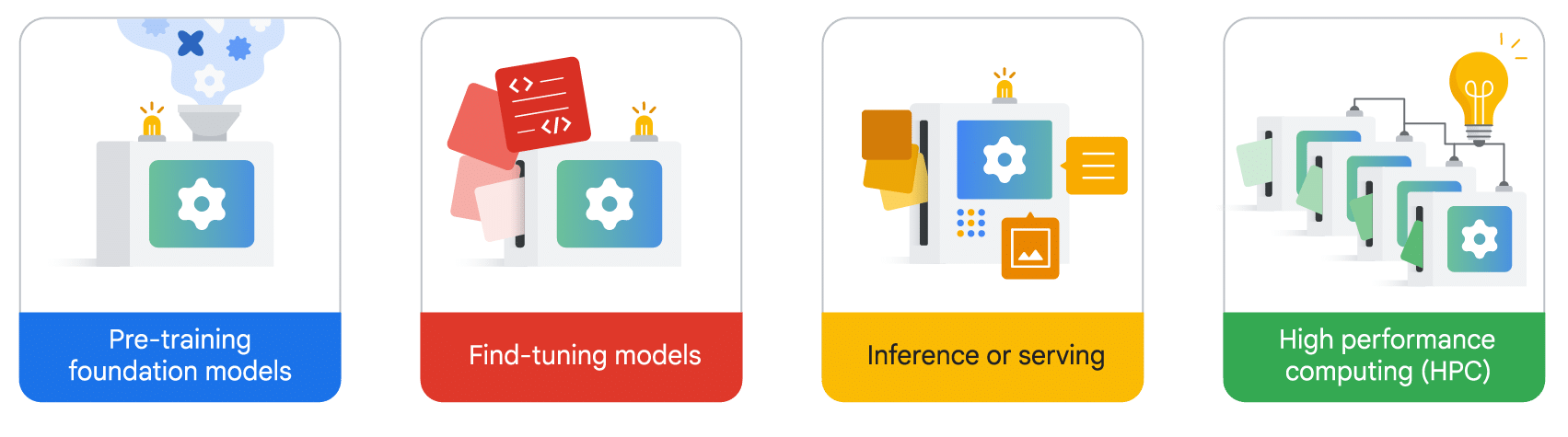
Four workload types
Pre-training foundation models is like teaching a new student a wide range of general subjects. You use a massive dataset to create a new model that is good at general tasks, such as an LLM. This is very resource-intensive and can take weeks or months.
Fine-tuning models takes a pre-trained model and adapts it for a specific, specialized task using a smaller, more focused dataset. It is less demanding than pre-training but still requires significant resources.
Inference or serving is when the model is ready to be used by the public. You take the trained model and make it available for users and applications to get predictions or generate responses. This can be done on a single machine or across many machines, depending on the model size.
High performance computing (HPC) uses a cluster of computers to solve complex problems that are too large for a single machine, such as scientific research or engineering simulations.
Accelerator recommendations by workload
Pre-training:
- Foundational models (hundreds of billions to trillions of parameters): the recommended machine type is A4X.
- Large models (tens to hundreds of billions of parameters): the recommended machine types are A4 and A3 Ultra.
These are deployed using an orchestrator like GKE or Slurm.
Fine-tuning: the best machines for large models are A3 Mega or A3 High, deployed with an orchestrator like GKE or Slurm.
Inference: the choice depends on the model size.
- Multi-host inference (spanning multiple machines) uses the same accelerators as pre-training: A4, A4 Ultra, A3 Mega, or A3 High.
- Single-host inference (confined to one machine) recommends the same machine types, but deployed as single VMs rather than a cluster.
HPC: highly flexible and can use any accelerator-optimized or compute-optimized machine series. The specific choice depends on how much of the workload can be handled by a GPU versus the CPU.
Inference does not have a single recommended machine family. Whether you span multiple machines (multi-host) or stay confined to one machine (single-host) is determined by the size of the model, not by a fixed default.
Choosing a consumption option
There are different ways to pay for and access GPU resources on Google Cloud. Choosing the right consumption option is key to getting the performance you need while managing your budget. Think of it like booking a rental car - do you need a car for a specific long trip, a short trip you can take any time, or a last-minute errand if a car happens to be available? Your workload has similar needs.
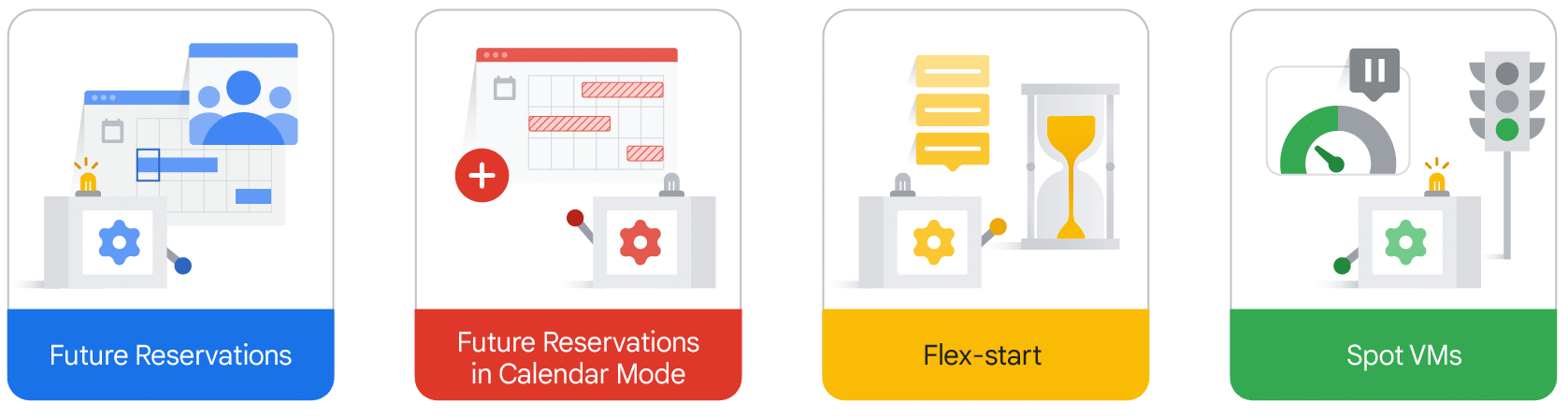
Future reservations
For when you know exactly what you need and when.
- Best for: long-running, stable workloads that require a guaranteed supply of resources for an extended period, such as pre-training foundation models or multi-host inference.
- How it works: work with your Google Cloud account team to reserve a specific number of GPUs (like A4X, A4, and A3 Ultra machine types) for a future date and time.
- What you get: the highest level of capacity assurance, plus significant discounts of up to 53% on vCPUs and GPUs.
Future reservations in Calendar Mode
A flexible version of a future reservation, for jobs with a clear start and end date.
- Best for: workloads that require stability for a defined period of up to 90 days, such as pre-training or fine-tuning models.
- How it works: create a reservation request for a future date and time for machine types like A4 and A3 Ultra. Google Cloud reviews and approves the request, and the resources are reserved for you at that time.
- What you get: guaranteed resources for a shorter duration, also up to a 53% discount.
Flex-start
For short-lived, dense clusters.
- Best for: workloads that are not time-sensitive and can wait for resources to become available. Ideal for short-lived batch jobs that last up to seven days.
- How it works: you request a cluster, but it isn't created immediately. Google Cloud automatically provisions the cluster as soon as the necessary resources become available.
- What you get: short-lived clusters with a deep discount of up to 53% for vCPUs and GPUs (for A2 machine types and newer).
Spot VMs
The most cost-effective option, with a trade-off.
- Best for: fault-tolerant workloads that can handle being interrupted, such as batch processing or non-critical tasks.
- How it works: you create a VM instantly, but because you are using excess capacity, Google Cloud can preempt (shut down) your VM at any time if the resources are needed elsewhere.
- What you get: the deepest possible discount, ranging from 61% to 90% off the on-demand price.
Google Cloud can shut down (preempt) a Spot VM at any time when the underlying capacity is needed elsewhere. Only use Spot VMs for fault-tolerant, interruptible workloads that can recover from being stopped mid-run.
- Up to 53% off vCPUs and GPUs with future reservations, Calendar Mode, and Flex-start.
- Calendar Mode: guaranteed resources for up to 90 days.
- Flex-start: short-lived batch jobs lasting up to 7 days.
- Spot VMs: 61% to 90% off the on-demand price.
Choosing a deployment option
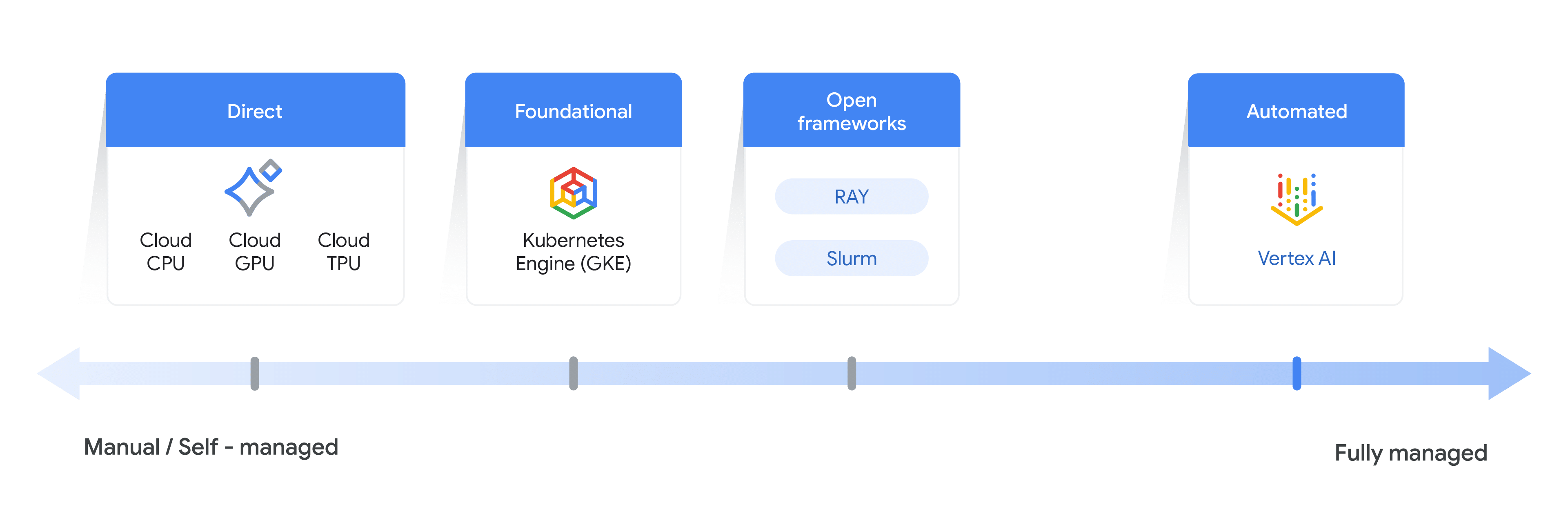
When deploying an AI Hypercomputer, you're not locked into a single method. The options fall along a spectrum, from highly-managed, hands-off solutions to self-managed, high-control environments. Your choice depends on your team's expertise, desired level of control, and specific workload requirements.
Cluster Director and colocation
These deployment methods often utilize Cluster Director features, available for machine types like A4 and A3 Ultra, to manage large-scale clusters efficiently. Cluster Director helps you manage resources, like GPUs and TPUs, as a single unit with physically collocated VMs. Dense colocation of accelerator resources in Cluster Director means requesting powerful compute resources that are physically located very close to each other to work on a single task.
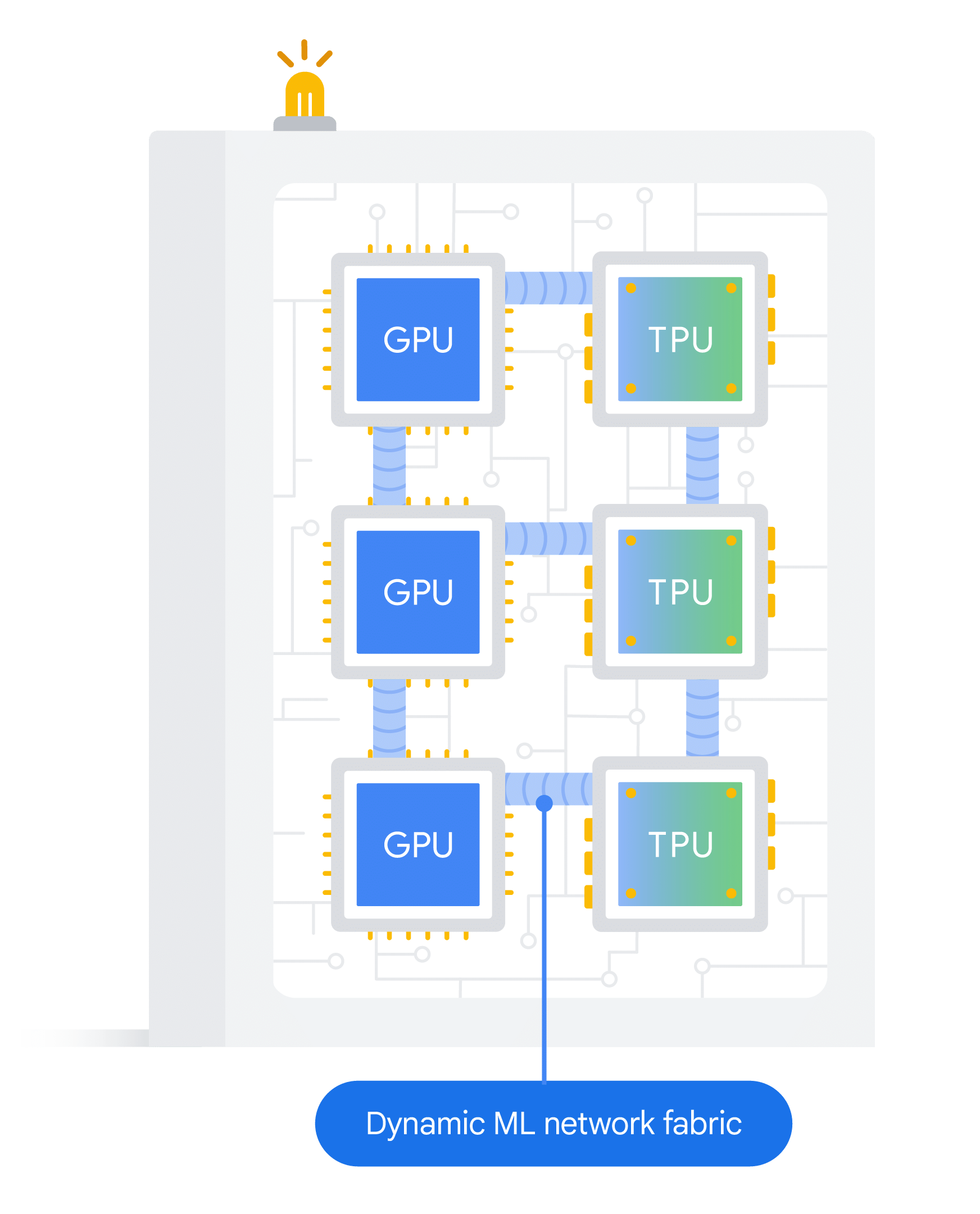
The accelerators are allocated in "blocks" and are connected by a special high-speed network called a dynamic ML network fabric. This setup is designed to achieve two key goals: minimize network hops, and optimize for low latency.
You can also view the network topology for a visual map of your VMs' physical layout. By viewing their arrangement, you can determine which VMs are closest to each other. Understanding this VM proximity lets you optimize your application and workload design to further minimize network latency. It also helps you troubleshoot network latency and performance issues, especially when frequently communicating VMs are unexpectedly located far apart.
- Minimize network hops - keep accelerator blocks physically close so data traverses fewer links.
- Optimize for low latency - the dynamic ML network fabric connects blocks for fast communication.
- Cluster Director availability - offered for machine types like A4 and A3 Ultra.
Choosing an orchestrator
When you have a group of computers working together as a cluster, you need a way to manage them. Instead of manually handling each individual computer, you use an orchestrator to automate the process. Think of an orchestrator as a conductor for an orchestra - it directs and coordinates all the different parts to work in harmony.
- Job queueing - deciding which tasks run and in what order.
- Resource allocation - assigning the right amount of computing power to each task.
- Auto-scaling - automatically adjusting the number of computers in the cluster based on demand (especially with a managed service like GKE).
Orchestration options
While a fully managed service like Vertex AI is the fastest and simplest way to run AI workloads, sometimes you need more control over the environment to use custom tools or integrate with existing workflows. Outside of Vertex AI there are two common paths: Google Kubernetes Engine (GKE) and a Slurm cluster on Compute Engine for an HPC-style approach.
GKE (the cloud-native approach). GKE is the foundation. It comes in two modes: Standard and Autopilot. In either mode GKE handles the hard parts of managing the underlying hardware, like creating node pools with specific accelerators and ensuring individual workloads or pods are placed on nodes that meet their hardware requests.
A distributed AI job is more than a collection of individual pods - it is a coordinated group often managed as a single cohesive unit. This higher-level job orchestration is where you have options. By itself GKE gives the foundational tools, but an extra layer is often needed for job-specific logic:
- If your team already knows Kubernetes, use its native workload-management tools or add a lightweight extension like LeaderWorkerSet to coordinate pods.
- For developers less familiar with Kubernetes (or who prefer a different abstraction), use a framework like Ray, which provides a Python-native way to distribute application tasks across the cluster.
Slurm with Cluster Director (the HPC approach). Slurm is an open-source cluster manager common in HPC environments. The best way to set it up on Google Cloud is with Cluster Director.
Cluster Director is a management plane that simplifies deploying and operating a Slurm cluster. It provides a simple UI, automates configuration based on best practices, and helps plan and schedule maintenance so the cluster is ready for demanding jobs.
You can still build a Slurm cluster from the ground up on Compute Engine VMs, but Cluster Director provides the fastest path to a production-ready environment.
For a flexible cloud-native approach, choose GKE - use either Kubernetes-native tools or a framework like Ray. For a managed Slurm environment that simplifies management of long-running jobs, choose Slurm with Cluster Director. For maximum control, install your own orchestrator on Compute Engine - but you take on full responsibility for maintenance.
Customers often choose Slurm for training jobs, but most run inference on Kubernetes (GKE).
Choosing an image
When you set up a cluster, you choose an image that provides the operating system and software your cluster will run on. The image you pick depends on whether you're using GKE or Compute Engine.
Images for GKE clusters
GKE is designed to work with containers, so the default choice is the Container-Optimized OS. This is the recommended option for both Standard and Autopilot modes.
If you're using GKE Standard mode, you also have the flexibility to choose other images, such as Ubuntu.
GKE also offers deep learning software layer (DLSL) container images. These are pre-packaged images that come with essential software for deep learning, like NVIDIA CUDA, NCCL, and machine learning frameworks such as PyTorch. They are ready to use.
If you're deploying your GKE cluster with Cluster Toolkit, you can only use the default container images that are built into its blueprints.
OS images for Compute Engine clusters
If you're building a cluster with Compute Engine, you'll need to select an OS image. AI Hypercomputer offers several accelerator images optimized for AI and machine learning. Choose the one you're most comfortable with.
- Rocky Linux 9 accelerator
- Rocky Linux 8 accelerator
- Ubuntu 24.04 LTS accelerator
- Ubuntu 22.04 LTS accelerator
If you use Cluster Toolkit, these accelerator images are already part of the blueprints, as Cluster Toolkit builds custom images that extend the Ubuntu LTS accelerator OS images.